You have the ability to reset your password if you forgot it, or change your password if you want to update it.
See instructions below:
Reset Your Password #
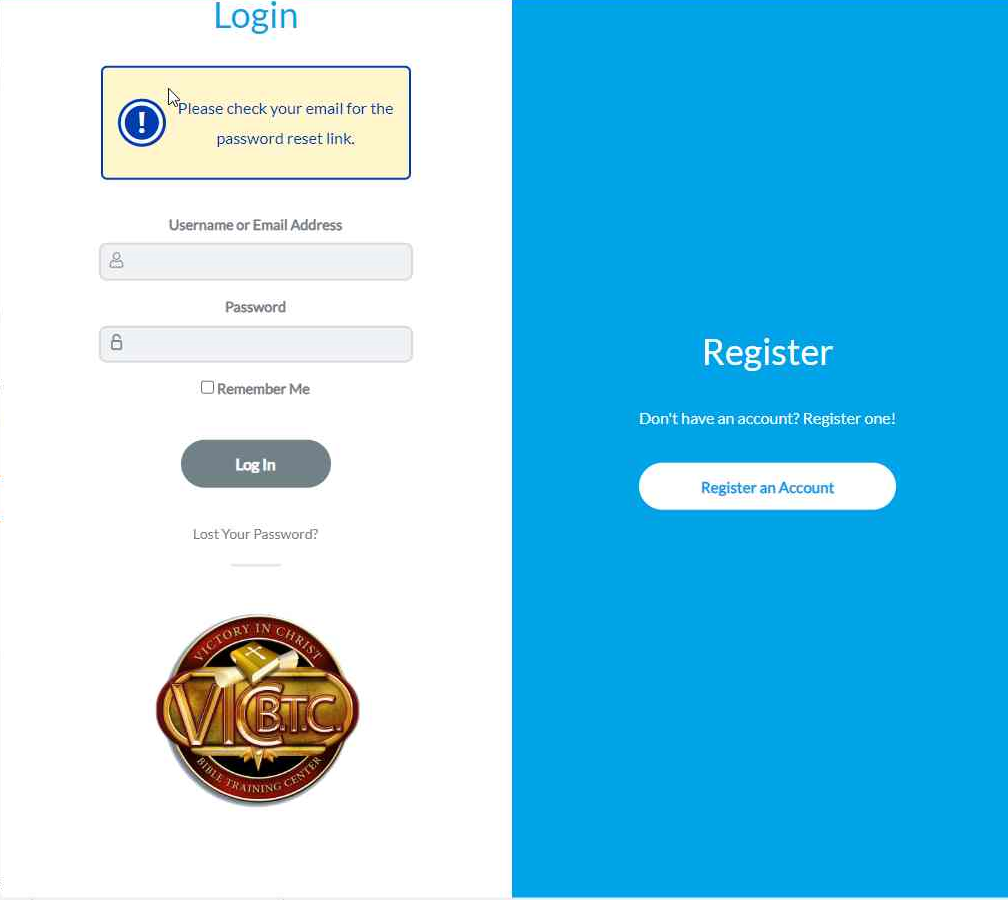
Step 1: Click the Login link on the top right of the screen.
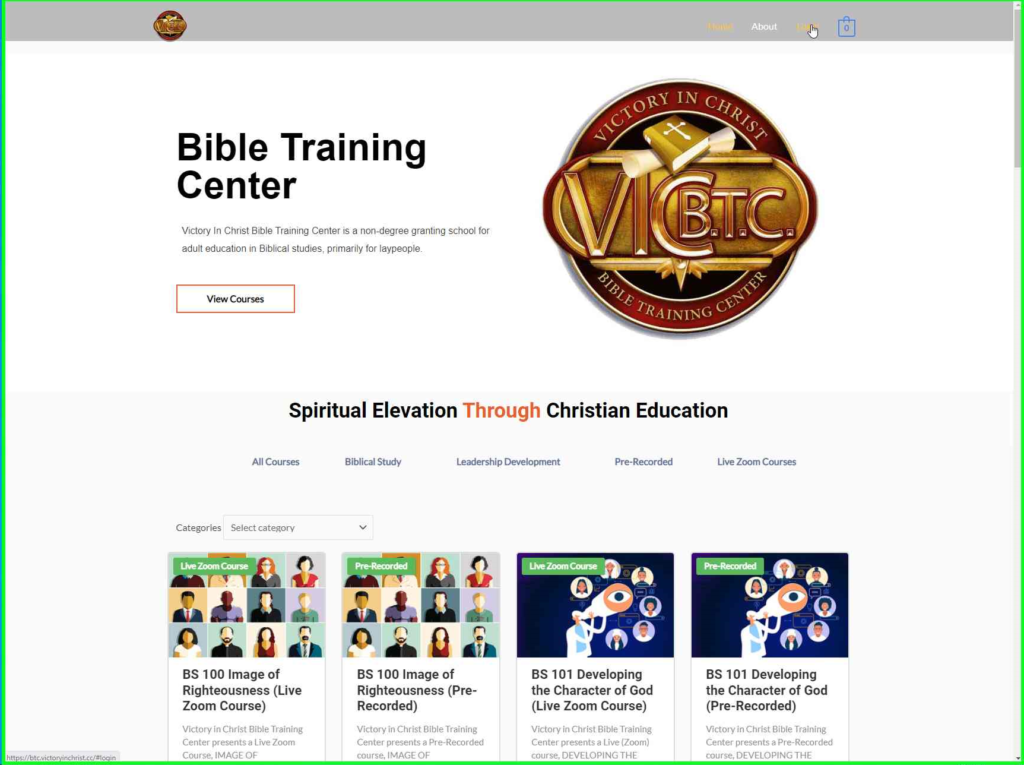
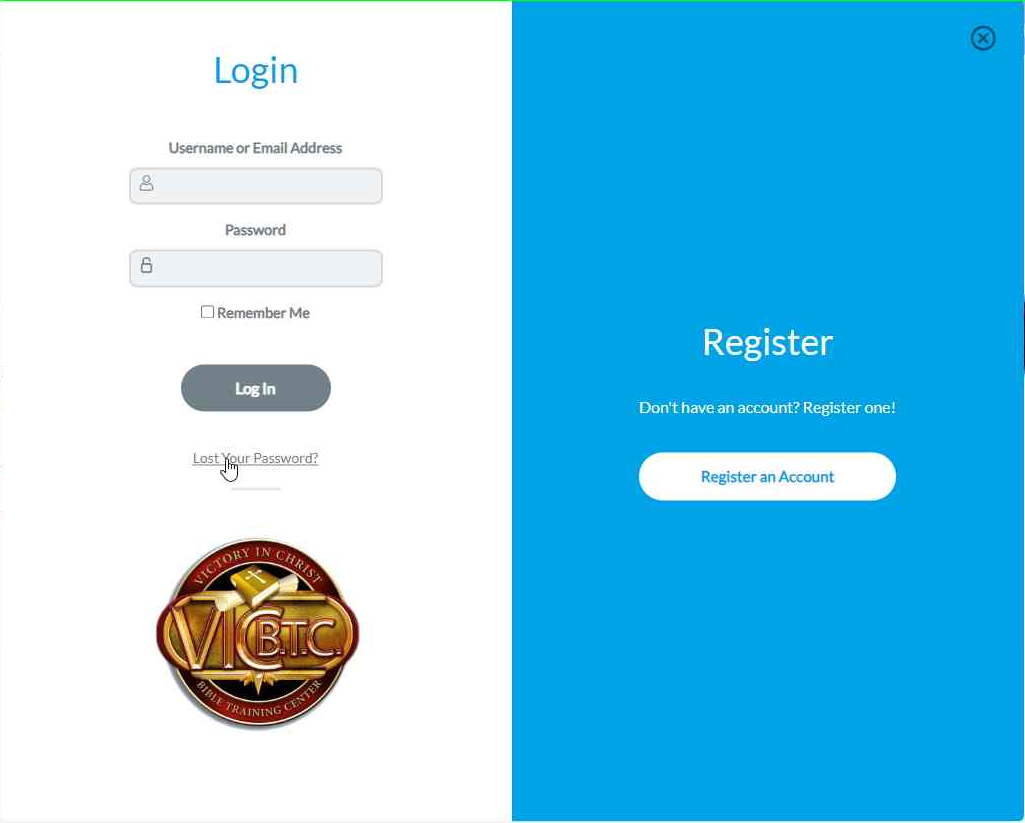
Step 2: Click on the Lost Your Password? link
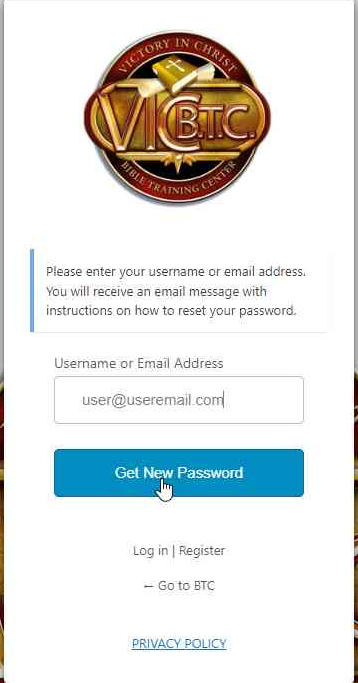
Step 3: Type in your username or email address that you normally use to login and click the Get New Password link.
Step 4: Follow instructions in the email to complete the reset.
Change your Password #
Step 1: Click on “My Learning”.
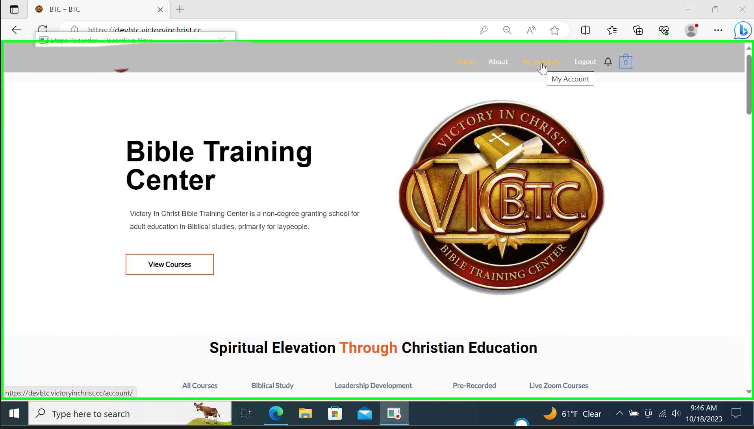
Step 2: Click on a course.
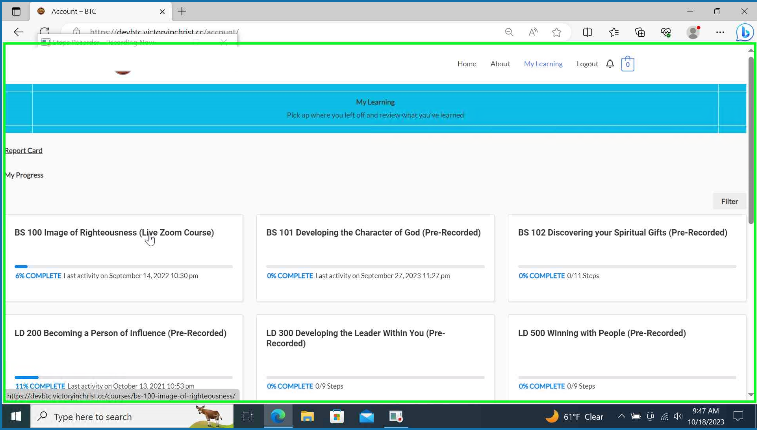
Step 3: Click on a lesson link.
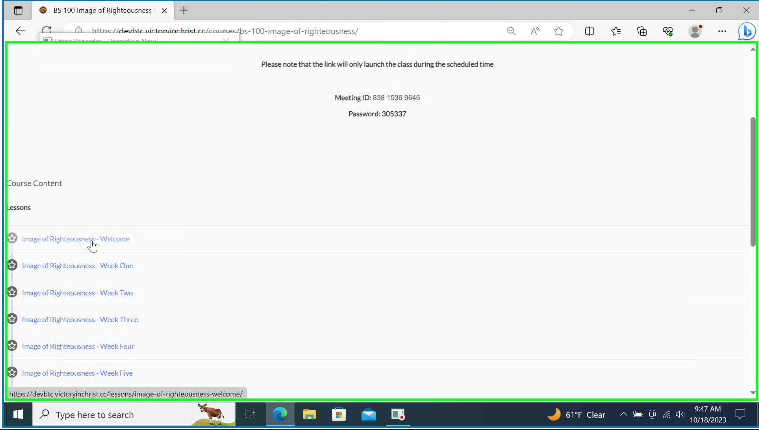
Step 4: Hover over your name towards the top right of the screen until a menu appears. Click on “Edit Profile”.
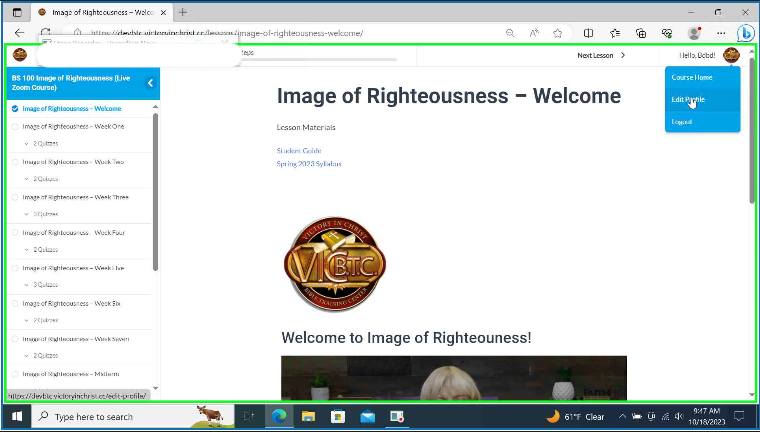
Step 5: On the profile page scroll down till you get to the Password and Repeat Password field
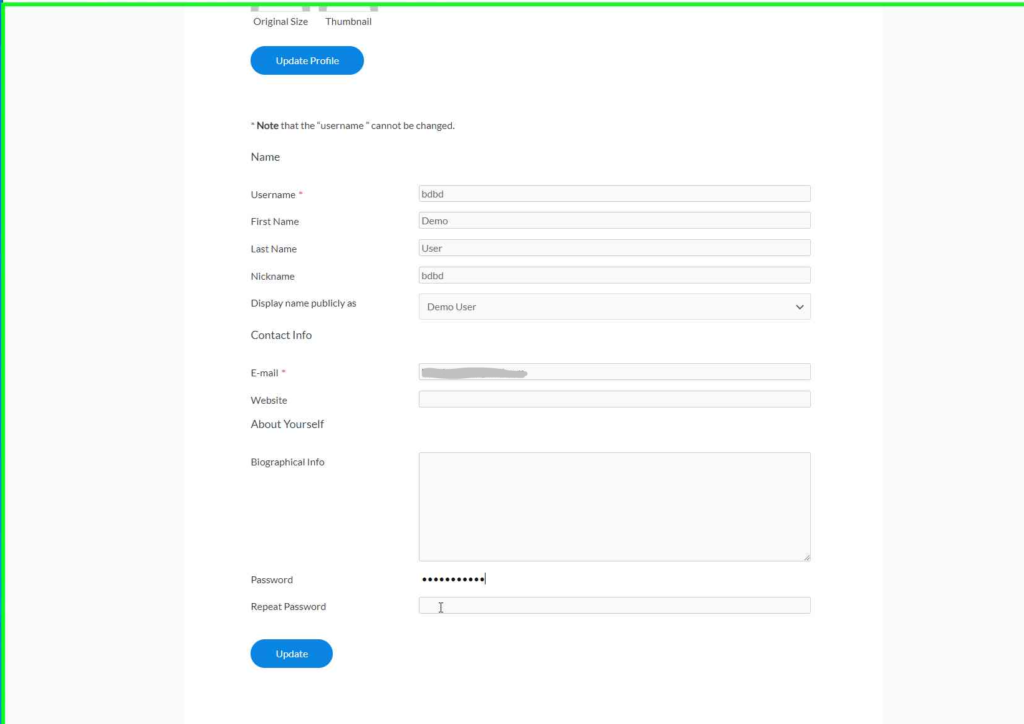
Step 6: Type in the new password you want and retype it in the Repeat Password field. Next hit Update.
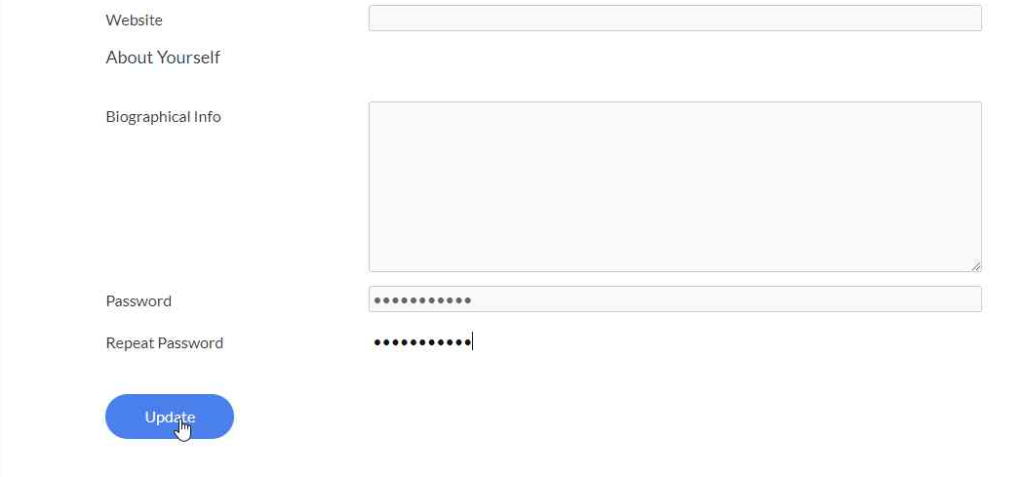
You will see a message that you successfully updated your password.